> ## Documentation Index
> Fetch the complete documentation index at: https://docs.siftd.ai/llms.txt
> Use this file to discover all available pages before exploring further.
# Form Cells
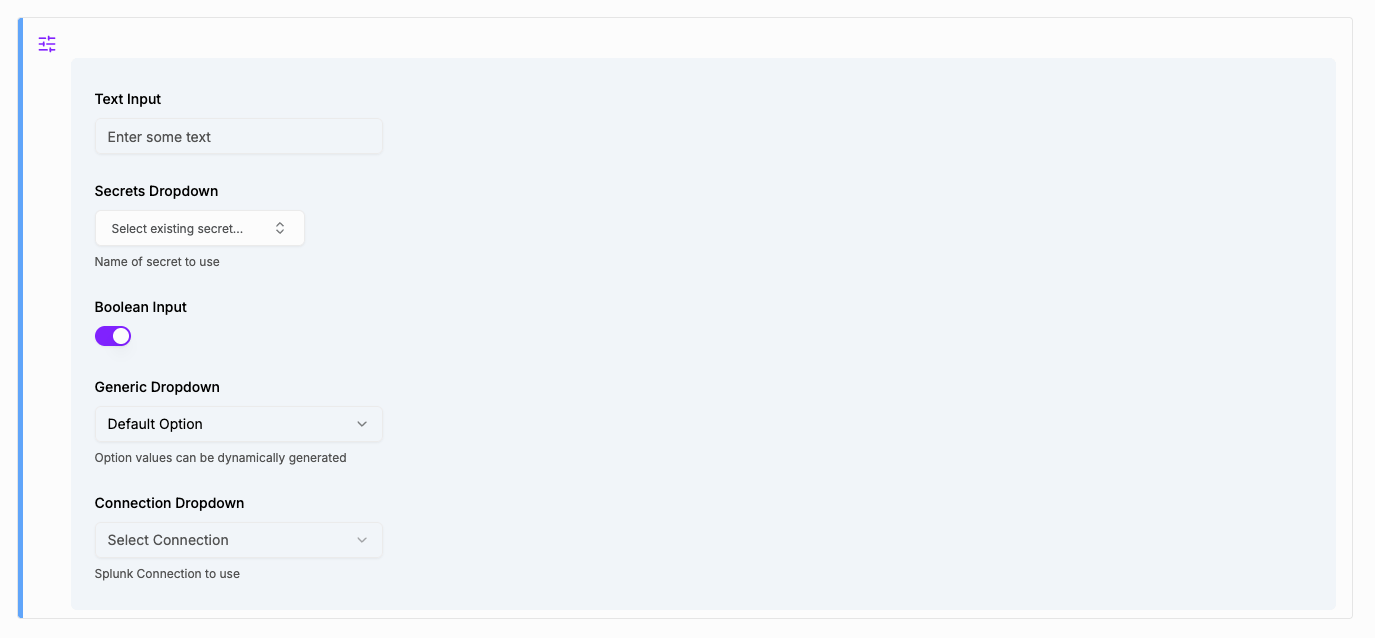
Form cells provide interactive form inputs that collect user input and make it available to subsequent cells. Use the `SpinForms` class to create form elements like checkboxes, text boxes, dropdowns, and connection selectors.
 ## When to Use Form Cells
Use **form cells** when input values will be used by subsequent cells. Form cells create reusable inputs that later cells can reference. This is ideal for notebooks where users configure settings upfront (e.g., selecting an environment, entering a service name) that affect multiple downstream operations.
Use @param syntax in [Python cells](./python-cells) when you need to parameterize a single cell's behavior. The @param values are scoped to that one cell and are best for cell-specific configuration that doesn't need to be shared.
## Important Notes
* **Re-execution**: Form cells automatically re-run when a session starts, when any cell before the form finishes running, or when the user interacts with any form input.
* **Performance**: Because form cells re-run frequently, avoid expensive operations like API calls or database queries directly in form cells. Instead, perform data fetching in Python cells before the form cell and reference the results using `CellResult.get_from_cell()`.
* **Variable naming**: The form input `id` should be a valid Python variable name and should match the variable you assign the return value to.
* **Form-only usage**: SpinForms functions can only be used in form cells, not in regular Python cells. Use the `@param` syntax for Python cell parameters.
## Available Input Types
### Checkbox
Returns a boolean value.
```python theme={null}
enable_debug = SpinForms.checkbox(
id="enable_debug",
label="Enable Debug Mode",
description="Turn on verbose logging",
default=False
)
```
### Textbox
Returns a string value.
```python theme={null}
service_name = SpinForms.textbox(
id="service_name",
label="Service Name",
description="Enter the name of the service to investigate",
default="",
placeholder="e.g., api-gateway"
)
```
### Dropdown
Returns the selected string value.
#### Static Options
Provide a list of strings for simple dropdown options:
```python theme={null}
environment = SpinForms.dropdown(
id="environment",
label="Environment",
description="Select the target environment",
choices=["development", "staging", "production"],
default="development"
)
```
#### Options with Display Labels
Use a dictionary to show different labels than the underlying values:
```python theme={null}
region = SpinForms.dropdown(
id="region",
label="Region",
description="Select the AWS region",
choices={
"us-east-1": "US East (N. Virginia)",
"us-west-2": "US West (Oregon)",
"eu-west-1": "EU (Ireland)"
},
default="us-east-1"
)
```
#### Dynamic Options from Previous Cells
Populate dropdown options from the output of a previous cell:
Initial shell cell (id=get\_context\_list) to get a list of kubectl context names, delimited by newline
```bash theme={null}
kubectl config get-contexts -o=name
```
Form cell asking the user to select a valid context name
```python theme={null}
kubectx = SpinForms.dropdown(
id="kubectx",
label="Context Name",
description="Select a context to use",
choices=get_context_list.splitlines()
)
```
#### Multi-Select Dropdown
Enable multiple selections by setting `multi=True`. Returns a list of selected values instead of a single string.
```python theme={null}
selected_regions = SpinForms.dropdown(
id="selected_regions",
label="Select Regions",
description="Choose one or more regions to deploy to",
choices=["us-east-1", "us-west-2", "eu-west-1", "ap-southeast-1"],
multi=True
)
# selected_regions is a list: ["us-east-1", "eu-west-1"]
# Iterate over selected values
for region in selected_regions:
print(f"Deploying to {region}")
```
With display labels:
```python theme={null}
selected_services = SpinForms.dropdown(
id="selected_services",
label="Services to Restart",
description="Select which services to restart",
choices={
"api": "API Gateway",
"auth": "Authentication Service",
"db": "Database Service",
"cache": "Cache Service"
},
multi=True
)
# selected_services contains the keys: ["api", "cache"]
```
### Connections
Returns the selected connection name. Useful for letting users select from configured integrations.
```python theme={null}
# Show only Datadog and Prometheus connections
monitoring_connection = SpinForms.connections(
id="monitoring_connection",
label="Monitoring Connection",
description="Select the monitoring system to query",
schemes=["ddog", "prometheus"],
default=""
)
# Show all available connections (empty schemes list)
any_connection = SpinForms.connections(
id="any_connection",
label="Connection",
description="Select any connection",
schemes=[],
default=""
)
```
### Secrets
Returns the selected secret name. Use this when you want users to choose which credential to use at runtime.
```python theme={null}
secret_name_var = SpinForms.secrets(
id="secret_name_var",
label="API Key",
description="Select the API key to use",
default=""
)
```
#### Using the Selected Secret in Subsequent Cells
Since the secrets form returns the *name* of the secret (not the value), use `{{secret_var:variable_name}}` in non-Python cells to retrieve the actual secret value:
**Form Cell:**
```python theme={null}
secret_name_var = SpinForms.secrets(
id="secret_name_var",
label="API Key",
description="Select the API key to use"
)
```
**Shell Cell:**
```bash theme={null}
# Use secret_var: because the secret name is in a variable
curl -H "Authorization: Bearer {{secret_var:secret_name_var}}" https://api.example.com/data
```
**Python Cell:**
```python theme={null}
# In Python, pass the variable directly to get_secret
api_key_value = SpinSecrets.get_secret(secret_name_var)
```
Use `{{secret:SECRET_NAME}}` when the secret name is static. Use `{{secret_var:variable_name}}` when the secret name is stored in a variable (e.g., from a form dropdown).
### Time Range
Returns a tuple of two Python `datetime` objects representing the earliest and latest times in the range.
```python theme={null}
earliest, latest = SpinForms.timerange(
id="query_time",
label="Query Time Range",
description="Select the time range for your query",
default_earliest="-24h",
default_latest="now"
)
```
#### Time Expression Syntax
The time range picker supports various time expressions:
| Expression | Description |
| ---------------------- | ------------------------------ |
| `now` | Current time |
| `-15m` | 15 minutes ago |
| `-1h` | 1 hour ago |
| `-24h` | 24 hours ago |
| `-7d` | 7 days ago |
| `-30d` | 30 days ago |
| `@w0` | Start of current week (Sunday) |
| `@mon` | Start of current month |
| `-1d@d` | Start of yesterday |
| `-1h@h` | Start of the hour, 1 hour ago |
| `2025-01-01T00:00:00Z` | Absolute ISO timestamp |
#### Using Time Range Values
The returned datetime objects can be used directly with time-based APIs:
```python theme={null}
earliest, latest = SpinForms.timerange(
id="metrics_time",
label="Metrics Time Range",
default_earliest="-1h",
default_latest="now"
)
# Use with epoch timestamps
start_epoch = int(earliest.timestamp())
end_epoch = int(latest.timestamp())
# Use with ISO format strings
start_iso = earliest.isoformat()
end_iso = latest.isoformat()
# Use with strftime
start_formatted = earliest.strftime("%Y-%m-%d %H:%M:%S")
```
## Validation
Validate form inputs by raising `SpinForms.ValidationError`. The error message will be displayed next to the corresponding form input.
```python theme={null}
username = SpinForms.textbox(
id="username",
label="Username",
description="Enter your username",
placeholder="john.doe"
)
# Validate minimum length
if not username:
raise SpinForms.ValidationError("username", "Username is required")
if len(username) < 3:
raise SpinForms.ValidationError("username", "Username must be at least 3 characters")
# Validate format
import re
if not re.match(r'^[a-zA-Z0-9._-]+$', username):
raise SpinForms.ValidationError("username", "Username can only contain letters, numbers, dots, dashes, and underscores")
```
### Conditional Validation
```python theme={null}
environment = SpinForms.dropdown(
id="environment",
label="Environment",
choices=["development", "staging", "production"]
)
# Require confirmation for production
if environment == "production":
confirm = SpinForms.checkbox(
id="confirm_production",
label="Confirm Production",
description="I understand this will affect production systems"
)
if not confirm:
raise SpinForms.ValidationError("confirm_production", "You must confirm production deployments")
```
## Using Form Values in Subsequent Cells
Form cell variables are available to all subsequent cells in the notebook.
### In Python Cells
Reference form variables directly by their ID:
```python theme={null}
# Python cell following a form cell
print(f"Selected environment: {environment}")
print(f"Debug mode enabled: {enable_debug}")
# Use the values in your logic
if environment == "production" and not enable_debug:
print("Running in production mode with standard logging")
```
### In Non-Python Cells
Use the `{{variable_name}}` template syntax to reference form values in REST cells, LLM cells, Shell cells, and integration cells:
**REST Cell:**
```
GET https://api.example.com/{{environment}}/services/{{service_name}}/status
```
**Shell Cell:**
```bash theme={null}
kubectl get pods -n {{environment}} -l app={{service_name}}
```
**LLM Cell:**
```
Analyze the following metrics for the {{service_name}} service in {{environment}}:
{{datadog_1}}
```
## Dependent Form Elements
Form cells can reference results from previous cells to create dynamic forms.
### Example: Cascading Dropdowns
**Cell 1 (Python):** Fetch available regions
```python theme={null}
# Cell ID: fetch_regions
import httpx
response = httpx.get("https://api.example.com/regions")
regions = response.json() # Returns ["us-east-1", "us-west-2", "eu-west-1"]
```
**Cell 2 (Python):** Fetch clusters for selected region
```python theme={null}
# Cell ID: fetch_clusters
import httpx
response = httpx.get(f"https://api.example.com/regions/{region}/clusters")
clusters = response.json() # Returns list of cluster names
```
**Cell 3 (Form):** Let user select region, then cluster
```python theme={null}
# Get regions from cell 1
regions = CellResult.get_from_cell("fetch_regions").get_data()
region = SpinForms.dropdown(
id="region",
label="Region",
choices=regions
)
if region:
# Get clusters from cell 2 (which used the selected region)
clusters = CellResult.get_from_cell("fetch_clusters").get_data()
cluster = SpinForms.dropdown(
id="cluster",
label="Cluster",
choices=clusters
)
```
### Example: Conditional Form Inputs
```python theme={null}
# Primary selection
action = SpinForms.dropdown(
id="action",
label="Action",
choices=["restart", "scale", "rollback"]
)
# Show different inputs based on action
if action == "scale":
replica_count = SpinForms.textbox(
id="replica_count",
label="Replica Count",
description="Number of replicas (1-10)",
placeholder="3"
)
# Validate replica count
if replica_count:
try:
count = int(replica_count)
if count < 1 or count > 10:
raise SpinForms.ValidationError("replica_count", "Must be between 1 and 10")
except ValueError:
raise SpinForms.ValidationError("replica_count", "Must be a valid number")
elif action == "rollback":
versions = ["v1.2.3", "v1.2.2", "v1.2.1", "v1.2.0"]
target_version = SpinForms.dropdown(
id="target_version",
label="Target Version",
description="Select version to rollback to",
choices=versions
)
# Always show dry run option
dry_run = SpinForms.checkbox(
id="dry_run",
label="Dry Run",
description="Simulate the action without making changes",
default=True
)
```
## Complete Example
This example shows a complete deployment configuration form:
**Cell 1 (Python):** Fetch available environments
```python theme={null}
# Cell ID: get_environments
environments = ["development", "staging", "production"]
```
**Cell 2 (Python):** Fetch services for the workspace
```python theme={null}
# Cell ID: get_services
services = ["api-gateway", "user-service", "payment-service", "notification-service"]
```
**Cell 3 (Form):** Deployment configuration
```python theme={null}
# Get options from previous cells
environments = CellResult.get_from_cell("get_environments").get_data()
services = CellResult.get_from_cell("get_services").get_data()
# Environment selection
environment = SpinForms.dropdown(
id="environment",
label="Environment",
description="Target deployment environment",
choices=environments
)
if not environment:
raise SpinForms.ValidationError("environment", "Please select an environment")
# Service selection
service = SpinForms.dropdown(
id="service",
label="Service",
description="Service to deploy",
choices=services
)
if not service:
raise SpinForms.ValidationError("service", "Please select a service")
# Version input
version = SpinForms.textbox(
id="version",
label="Version",
description="Docker image tag to deploy",
placeholder="v1.2.3"
)
if not version:
raise SpinForms.ValidationError("version", "Version is required")
# Production safety checks
if environment == "production":
confirm = SpinForms.checkbox(
id="confirm",
label="Confirm Production Deployment",
description="I have verified this change is ready for production"
)
if not confirm:
raise SpinForms.ValidationError("confirm", "Production deployments require confirmation")
# Deployment options
dry_run = SpinForms.checkbox(
id="dry_run",
label="Dry Run",
description="Preview changes without applying",
default=True
)
notify_slack = SpinForms.checkbox(
id="notify_slack",
label="Notify Slack",
description="Send deployment notification to #deployments channel",
default=True
)
```
**Cell 4 (Shell):** Execute deployment
```bash theme={null}
#!/bin/bash
echo "Deploying {{service}} version {{version}} to {{environment}}"
if [ "{{dry_run}}" = "True" ]; then
echo "[DRY RUN] Would execute: kubectl set image deployment/{{service}} {{service}}={{version}} -n {{environment}}"
else
kubectl set image deployment/{{service}} {{service}}={{version}} -n {{environment}}
fi
```
## When to Use Form Cells
Use **form cells** when input values will be used by subsequent cells. Form cells create reusable inputs that later cells can reference. This is ideal for notebooks where users configure settings upfront (e.g., selecting an environment, entering a service name) that affect multiple downstream operations.
Use @param syntax in [Python cells](./python-cells) when you need to parameterize a single cell's behavior. The @param values are scoped to that one cell and are best for cell-specific configuration that doesn't need to be shared.
## Important Notes
* **Re-execution**: Form cells automatically re-run when a session starts, when any cell before the form finishes running, or when the user interacts with any form input.
* **Performance**: Because form cells re-run frequently, avoid expensive operations like API calls or database queries directly in form cells. Instead, perform data fetching in Python cells before the form cell and reference the results using `CellResult.get_from_cell()`.
* **Variable naming**: The form input `id` should be a valid Python variable name and should match the variable you assign the return value to.
* **Form-only usage**: SpinForms functions can only be used in form cells, not in regular Python cells. Use the `@param` syntax for Python cell parameters.
## Available Input Types
### Checkbox
Returns a boolean value.
```python theme={null}
enable_debug = SpinForms.checkbox(
id="enable_debug",
label="Enable Debug Mode",
description="Turn on verbose logging",
default=False
)
```
### Textbox
Returns a string value.
```python theme={null}
service_name = SpinForms.textbox(
id="service_name",
label="Service Name",
description="Enter the name of the service to investigate",
default="",
placeholder="e.g., api-gateway"
)
```
### Dropdown
Returns the selected string value.
#### Static Options
Provide a list of strings for simple dropdown options:
```python theme={null}
environment = SpinForms.dropdown(
id="environment",
label="Environment",
description="Select the target environment",
choices=["development", "staging", "production"],
default="development"
)
```
#### Options with Display Labels
Use a dictionary to show different labels than the underlying values:
```python theme={null}
region = SpinForms.dropdown(
id="region",
label="Region",
description="Select the AWS region",
choices={
"us-east-1": "US East (N. Virginia)",
"us-west-2": "US West (Oregon)",
"eu-west-1": "EU (Ireland)"
},
default="us-east-1"
)
```
#### Dynamic Options from Previous Cells
Populate dropdown options from the output of a previous cell:
Initial shell cell (id=get\_context\_list) to get a list of kubectl context names, delimited by newline
```bash theme={null}
kubectl config get-contexts -o=name
```
Form cell asking the user to select a valid context name
```python theme={null}
kubectx = SpinForms.dropdown(
id="kubectx",
label="Context Name",
description="Select a context to use",
choices=get_context_list.splitlines()
)
```
#### Multi-Select Dropdown
Enable multiple selections by setting `multi=True`. Returns a list of selected values instead of a single string.
```python theme={null}
selected_regions = SpinForms.dropdown(
id="selected_regions",
label="Select Regions",
description="Choose one or more regions to deploy to",
choices=["us-east-1", "us-west-2", "eu-west-1", "ap-southeast-1"],
multi=True
)
# selected_regions is a list: ["us-east-1", "eu-west-1"]
# Iterate over selected values
for region in selected_regions:
print(f"Deploying to {region}")
```
With display labels:
```python theme={null}
selected_services = SpinForms.dropdown(
id="selected_services",
label="Services to Restart",
description="Select which services to restart",
choices={
"api": "API Gateway",
"auth": "Authentication Service",
"db": "Database Service",
"cache": "Cache Service"
},
multi=True
)
# selected_services contains the keys: ["api", "cache"]
```
### Connections
Returns the selected connection name. Useful for letting users select from configured integrations.
```python theme={null}
# Show only Datadog and Prometheus connections
monitoring_connection = SpinForms.connections(
id="monitoring_connection",
label="Monitoring Connection",
description="Select the monitoring system to query",
schemes=["ddog", "prometheus"],
default=""
)
# Show all available connections (empty schemes list)
any_connection = SpinForms.connections(
id="any_connection",
label="Connection",
description="Select any connection",
schemes=[],
default=""
)
```
### Secrets
Returns the selected secret name. Use this when you want users to choose which credential to use at runtime.
```python theme={null}
secret_name_var = SpinForms.secrets(
id="secret_name_var",
label="API Key",
description="Select the API key to use",
default=""
)
```
#### Using the Selected Secret in Subsequent Cells
Since the secrets form returns the *name* of the secret (not the value), use `{{secret_var:variable_name}}` in non-Python cells to retrieve the actual secret value:
**Form Cell:**
```python theme={null}
secret_name_var = SpinForms.secrets(
id="secret_name_var",
label="API Key",
description="Select the API key to use"
)
```
**Shell Cell:**
```bash theme={null}
# Use secret_var: because the secret name is in a variable
curl -H "Authorization: Bearer {{secret_var:secret_name_var}}" https://api.example.com/data
```
**Python Cell:**
```python theme={null}
# In Python, pass the variable directly to get_secret
api_key_value = SpinSecrets.get_secret(secret_name_var)
```
Use `{{secret:SECRET_NAME}}` when the secret name is static. Use `{{secret_var:variable_name}}` when the secret name is stored in a variable (e.g., from a form dropdown).
### Time Range
Returns a tuple of two Python `datetime` objects representing the earliest and latest times in the range.
```python theme={null}
earliest, latest = SpinForms.timerange(
id="query_time",
label="Query Time Range",
description="Select the time range for your query",
default_earliest="-24h",
default_latest="now"
)
```
#### Time Expression Syntax
The time range picker supports various time expressions:
| Expression | Description |
| ---------------------- | ------------------------------ |
| `now` | Current time |
| `-15m` | 15 minutes ago |
| `-1h` | 1 hour ago |
| `-24h` | 24 hours ago |
| `-7d` | 7 days ago |
| `-30d` | 30 days ago |
| `@w0` | Start of current week (Sunday) |
| `@mon` | Start of current month |
| `-1d@d` | Start of yesterday |
| `-1h@h` | Start of the hour, 1 hour ago |
| `2025-01-01T00:00:00Z` | Absolute ISO timestamp |
#### Using Time Range Values
The returned datetime objects can be used directly with time-based APIs:
```python theme={null}
earliest, latest = SpinForms.timerange(
id="metrics_time",
label="Metrics Time Range",
default_earliest="-1h",
default_latest="now"
)
# Use with epoch timestamps
start_epoch = int(earliest.timestamp())
end_epoch = int(latest.timestamp())
# Use with ISO format strings
start_iso = earliest.isoformat()
end_iso = latest.isoformat()
# Use with strftime
start_formatted = earliest.strftime("%Y-%m-%d %H:%M:%S")
```
## Validation
Validate form inputs by raising `SpinForms.ValidationError`. The error message will be displayed next to the corresponding form input.
```python theme={null}
username = SpinForms.textbox(
id="username",
label="Username",
description="Enter your username",
placeholder="john.doe"
)
# Validate minimum length
if not username:
raise SpinForms.ValidationError("username", "Username is required")
if len(username) < 3:
raise SpinForms.ValidationError("username", "Username must be at least 3 characters")
# Validate format
import re
if not re.match(r'^[a-zA-Z0-9._-]+$', username):
raise SpinForms.ValidationError("username", "Username can only contain letters, numbers, dots, dashes, and underscores")
```
### Conditional Validation
```python theme={null}
environment = SpinForms.dropdown(
id="environment",
label="Environment",
choices=["development", "staging", "production"]
)
# Require confirmation for production
if environment == "production":
confirm = SpinForms.checkbox(
id="confirm_production",
label="Confirm Production",
description="I understand this will affect production systems"
)
if not confirm:
raise SpinForms.ValidationError("confirm_production", "You must confirm production deployments")
```
## Using Form Values in Subsequent Cells
Form cell variables are available to all subsequent cells in the notebook.
### In Python Cells
Reference form variables directly by their ID:
```python theme={null}
# Python cell following a form cell
print(f"Selected environment: {environment}")
print(f"Debug mode enabled: {enable_debug}")
# Use the values in your logic
if environment == "production" and not enable_debug:
print("Running in production mode with standard logging")
```
### In Non-Python Cells
Use the `{{variable_name}}` template syntax to reference form values in REST cells, LLM cells, Shell cells, and integration cells:
**REST Cell:**
```
GET https://api.example.com/{{environment}}/services/{{service_name}}/status
```
**Shell Cell:**
```bash theme={null}
kubectl get pods -n {{environment}} -l app={{service_name}}
```
**LLM Cell:**
```
Analyze the following metrics for the {{service_name}} service in {{environment}}:
{{datadog_1}}
```
## Dependent Form Elements
Form cells can reference results from previous cells to create dynamic forms.
### Example: Cascading Dropdowns
**Cell 1 (Python):** Fetch available regions
```python theme={null}
# Cell ID: fetch_regions
import httpx
response = httpx.get("https://api.example.com/regions")
regions = response.json() # Returns ["us-east-1", "us-west-2", "eu-west-1"]
```
**Cell 2 (Python):** Fetch clusters for selected region
```python theme={null}
# Cell ID: fetch_clusters
import httpx
response = httpx.get(f"https://api.example.com/regions/{region}/clusters")
clusters = response.json() # Returns list of cluster names
```
**Cell 3 (Form):** Let user select region, then cluster
```python theme={null}
# Get regions from cell 1
regions = CellResult.get_from_cell("fetch_regions").get_data()
region = SpinForms.dropdown(
id="region",
label="Region",
choices=regions
)
if region:
# Get clusters from cell 2 (which used the selected region)
clusters = CellResult.get_from_cell("fetch_clusters").get_data()
cluster = SpinForms.dropdown(
id="cluster",
label="Cluster",
choices=clusters
)
```
### Example: Conditional Form Inputs
```python theme={null}
# Primary selection
action = SpinForms.dropdown(
id="action",
label="Action",
choices=["restart", "scale", "rollback"]
)
# Show different inputs based on action
if action == "scale":
replica_count = SpinForms.textbox(
id="replica_count",
label="Replica Count",
description="Number of replicas (1-10)",
placeholder="3"
)
# Validate replica count
if replica_count:
try:
count = int(replica_count)
if count < 1 or count > 10:
raise SpinForms.ValidationError("replica_count", "Must be between 1 and 10")
except ValueError:
raise SpinForms.ValidationError("replica_count", "Must be a valid number")
elif action == "rollback":
versions = ["v1.2.3", "v1.2.2", "v1.2.1", "v1.2.0"]
target_version = SpinForms.dropdown(
id="target_version",
label="Target Version",
description="Select version to rollback to",
choices=versions
)
# Always show dry run option
dry_run = SpinForms.checkbox(
id="dry_run",
label="Dry Run",
description="Simulate the action without making changes",
default=True
)
```
## Complete Example
This example shows a complete deployment configuration form:
**Cell 1 (Python):** Fetch available environments
```python theme={null}
# Cell ID: get_environments
environments = ["development", "staging", "production"]
```
**Cell 2 (Python):** Fetch services for the workspace
```python theme={null}
# Cell ID: get_services
services = ["api-gateway", "user-service", "payment-service", "notification-service"]
```
**Cell 3 (Form):** Deployment configuration
```python theme={null}
# Get options from previous cells
environments = CellResult.get_from_cell("get_environments").get_data()
services = CellResult.get_from_cell("get_services").get_data()
# Environment selection
environment = SpinForms.dropdown(
id="environment",
label="Environment",
description="Target deployment environment",
choices=environments
)
if not environment:
raise SpinForms.ValidationError("environment", "Please select an environment")
# Service selection
service = SpinForms.dropdown(
id="service",
label="Service",
description="Service to deploy",
choices=services
)
if not service:
raise SpinForms.ValidationError("service", "Please select a service")
# Version input
version = SpinForms.textbox(
id="version",
label="Version",
description="Docker image tag to deploy",
placeholder="v1.2.3"
)
if not version:
raise SpinForms.ValidationError("version", "Version is required")
# Production safety checks
if environment == "production":
confirm = SpinForms.checkbox(
id="confirm",
label="Confirm Production Deployment",
description="I have verified this change is ready for production"
)
if not confirm:
raise SpinForms.ValidationError("confirm", "Production deployments require confirmation")
# Deployment options
dry_run = SpinForms.checkbox(
id="dry_run",
label="Dry Run",
description="Preview changes without applying",
default=True
)
notify_slack = SpinForms.checkbox(
id="notify_slack",
label="Notify Slack",
description="Send deployment notification to #deployments channel",
default=True
)
```
**Cell 4 (Shell):** Execute deployment
```bash theme={null}
#!/bin/bash
echo "Deploying {{service}} version {{version}} to {{environment}}"
if [ "{{dry_run}}" = "True" ]; then
echo "[DRY RUN] Would execute: kubectl set image deployment/{{service}} {{service}}={{version}} -n {{environment}}"
else
kubectl set image deployment/{{service}} {{service}}={{version}} -n {{environment}}
fi
```